Zoom Integration Guide
Overview
LevelUp Demo supports Zoom integration so you can generate Zoom meeting links automatically while scheduling product demos. This keeps your workflow fast and avoids manual setup.
How to Connect Zoom
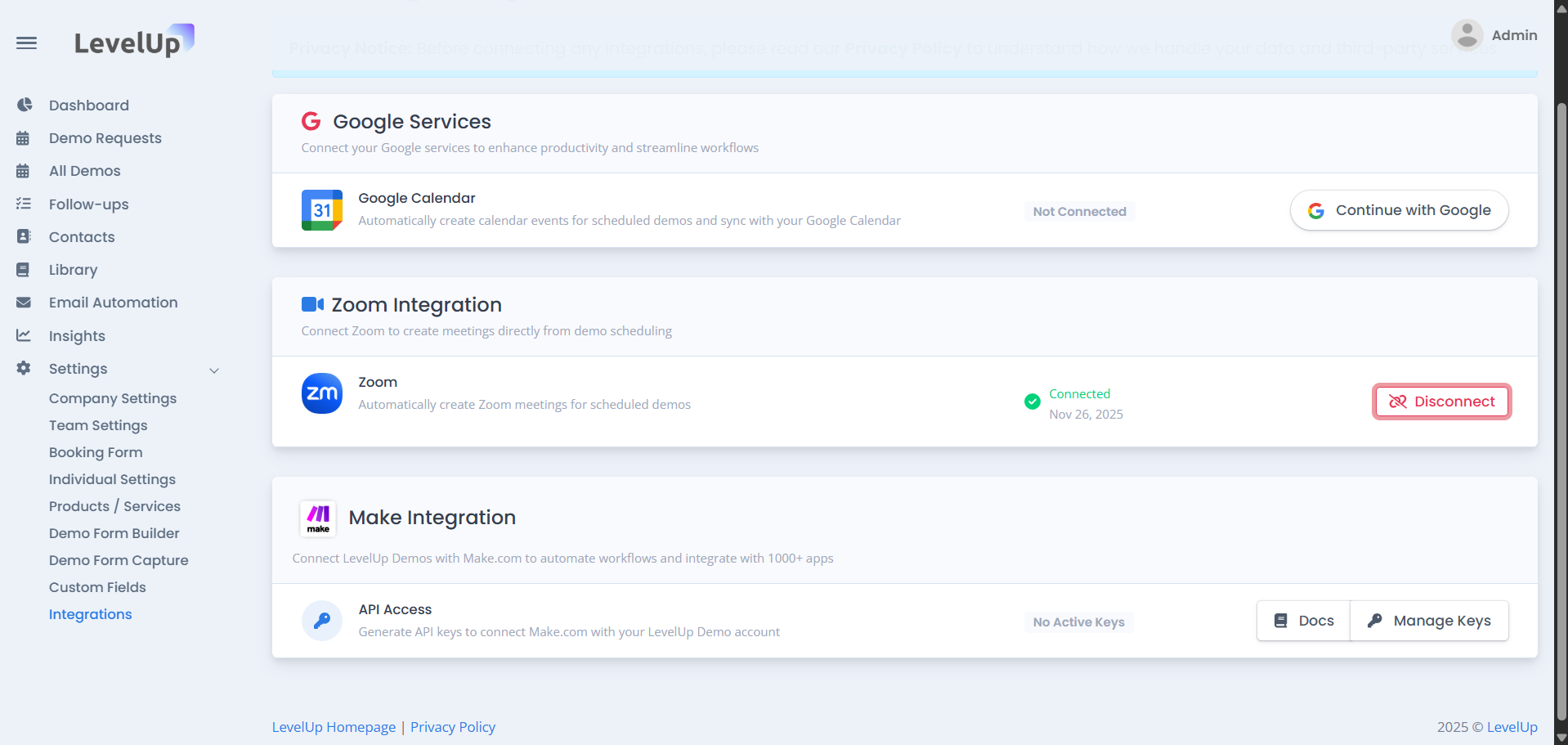
1. Open Settings
Go to Settings → Integrations in your LevelUp dashboard.
2. Select “Connect Zoom”
Click the Connect Zoom button.
3. Sign in & Approve
Log in to your Zoom account and select Allow to approve the integration.
4. Connection Complete
Your dashboard will show Zoom Connected.
How to Use Zoom
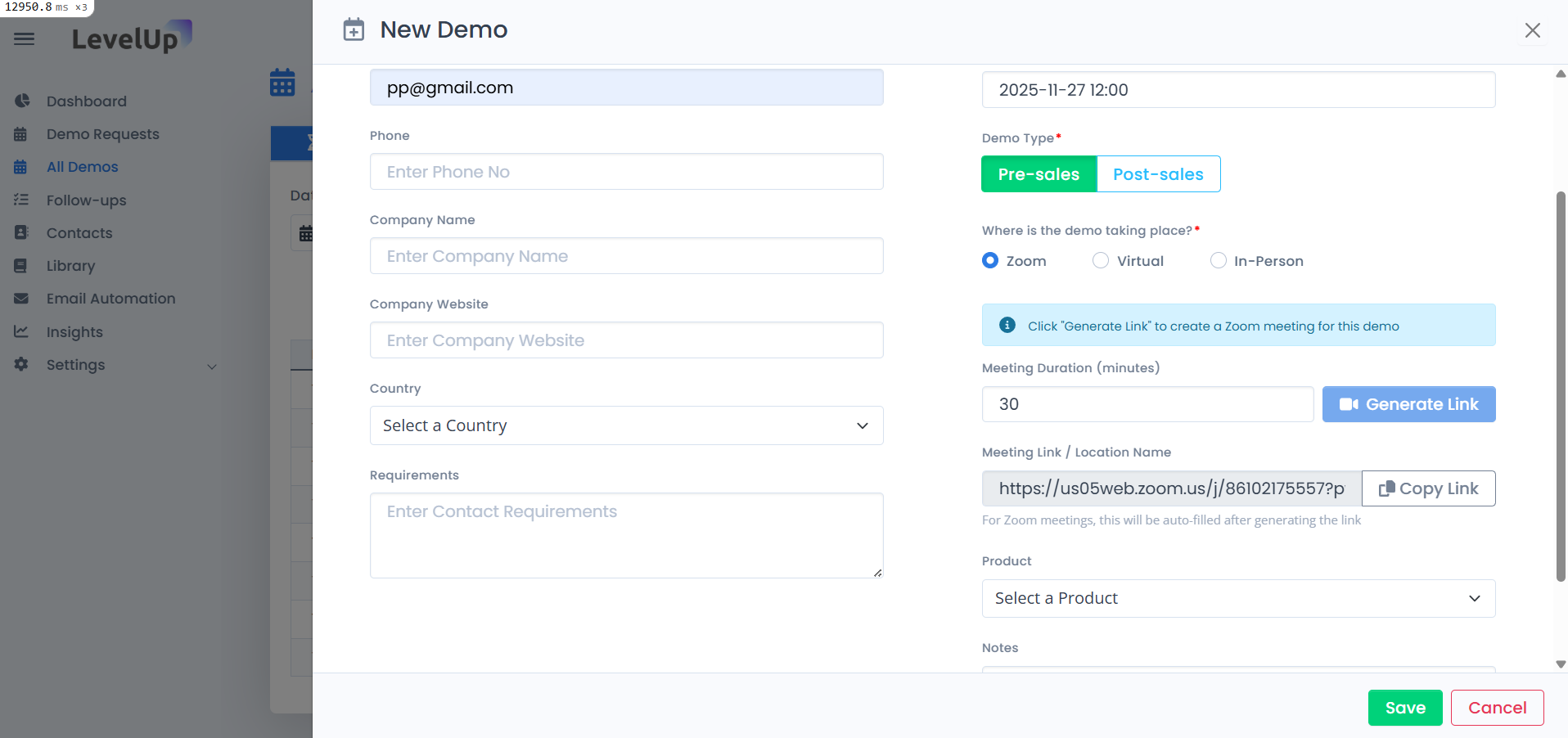
1. Schedule a Demo
Create a new demo or edit an existing one.
2. Choose Zoom
Select Zoom as the meeting location.
3. Generate Link
Set the meeting duration and click Generate Link.
4. Share or Copy Link
Use the link anywhere you need.
How to Disconnect Zoom
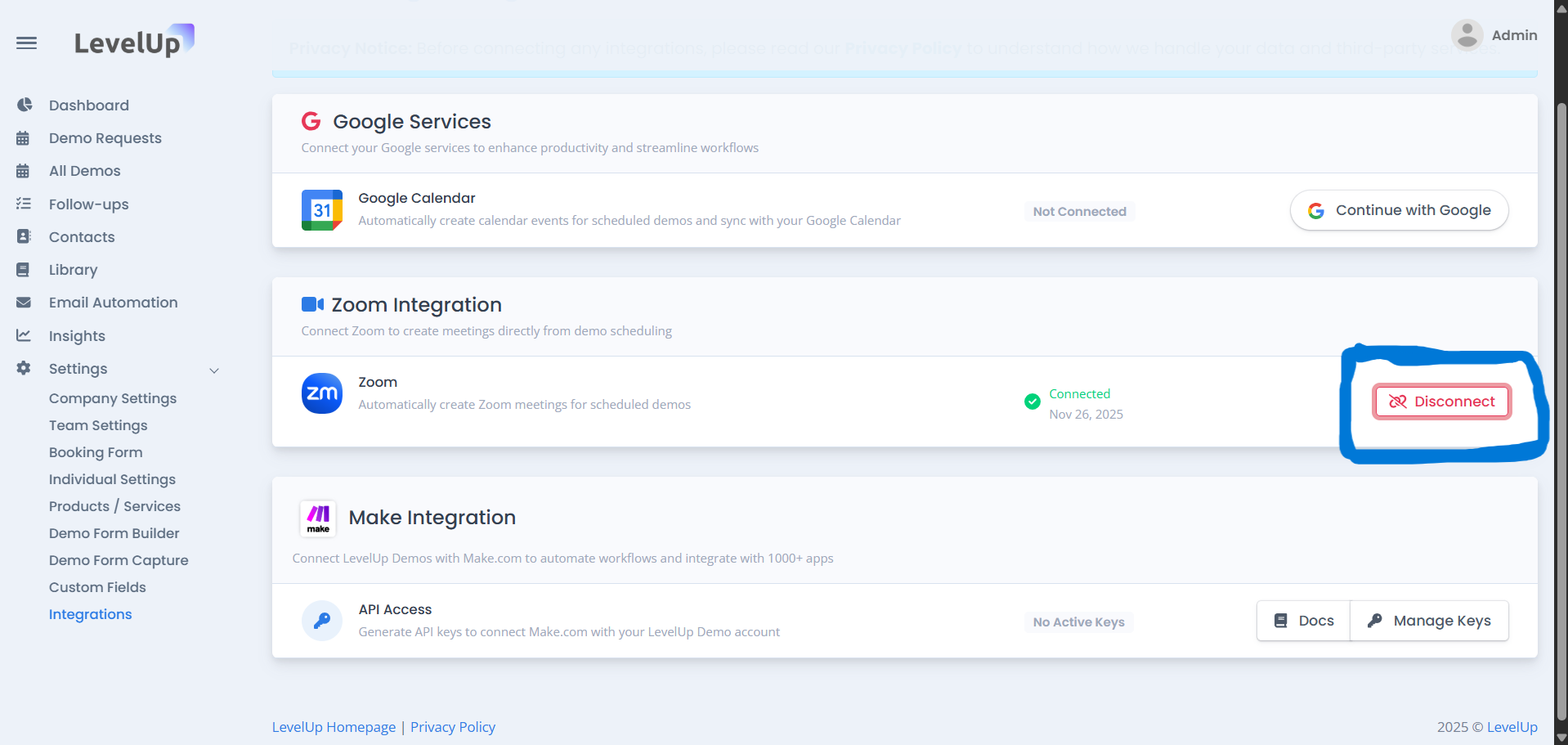
1. Open Settings
Go to Settings → Integrations.
2. Click “Disconnect”
Select Disconnect to remove the integration.
3. Data Removed
All connected tokens are deleted from LevelUp immediately.
Email Notification
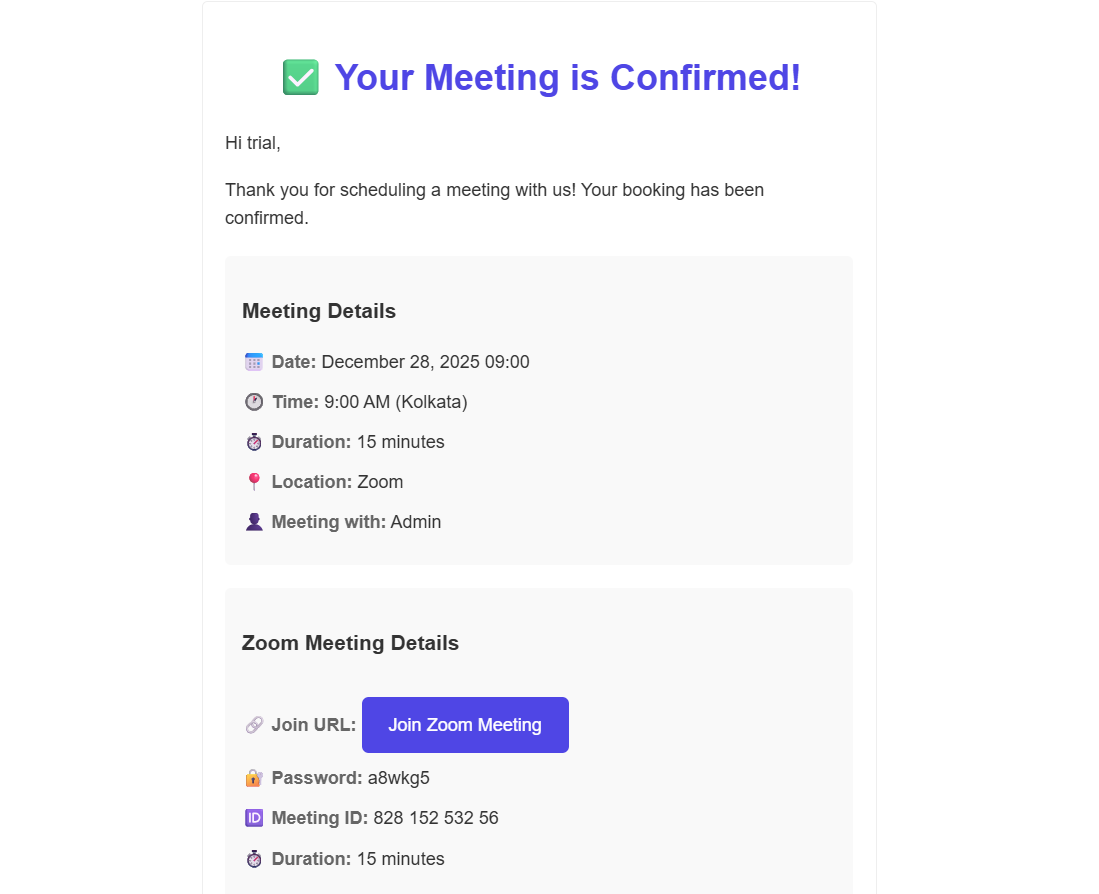
When a demo is scheduled, LevelUp automatically sends an email to the host and the lead.
This email includes the Zoom meeting link, meeting ID, password, date, and time so both sides have all the details without logging into the dashboard.
Data We Access
- Zoom profile details: name and email
- Permission to create meetings
- Permission to view or delete meetings created through LevelUp
Data We Store
- OAuth tokens for Zoom access
- Your Zoom email for display purposes
- Meeting IDs and generated Zoom links
Your Privacy & Security
- All data is encrypted and transferred over HTTPS (TLS 1.2+)
- Tokens are securely stored
- Disconnecting removes all Zoom-related data instantly