
![How to Migrate from Spreadsheets to CRM? [Quick Guide]](https://levelupdemo.com/wp-content/uploads/2025/10/How-to-Migrate-from-Spreadsheets-to-CRM.png)
I’ll never forget the morning I lost a $22,000 deal because I couldn’t find the follow-up notes in my spreadsheet.
I was scrolling through tabs labeled “Leads_Final,” “Leads_ACTUAL_Final,” and my personal favorite, “Leads_USE_THIS_ONE,” trying to remember which version had the most recent conversation details. By the time I found the right cell—buried in column AF, row 247—the prospect had already signed with a competitor.
That’s when I knew: my spreadsheet had gone from helpful tool to active liability.
If you’re reading this, you’re probably in a similar spot. Maybe you’ve got demo requests scattered across three different tabs. Maybe your team keeps overwriting each other’s notes. Or maybe you just opened your “master lead tracker” and realized you have no idea who’s supposed to follow up with whom.
The good news? Migrating from spreadsheets to a CRM isn’t the nightmare you think it is. I’ve walked dozens of founders and small teams through this transition, and I promise—it’s less about technical wizardry and more about smart preparation.
In this guide, I’ll walk you through exactly how to migrate your data without losing your mind (or your leads). We’ll cover the prep work that prevents disaster, the actual migration steps, common mistakes I’ve seen teams make, and how to get your team on board without a revolt.
By the end, you’ll have a clear roadmap—and maybe even feel a little excited about finally having a system that works with you instead of against you.
So, What Exactly Does Migrating from Spreadsheets to CRM Mean?
At its core, migration is just moving your customer data from Excel or Google Sheets into a proper CRM system. But here’s the thing—it’s not just copy-paste. You’re essentially taking years of informal note-taking, inconsistent formatting, and “I’ll remember what that means later” shorthand, and translating it into a structured system that multiple people can use.
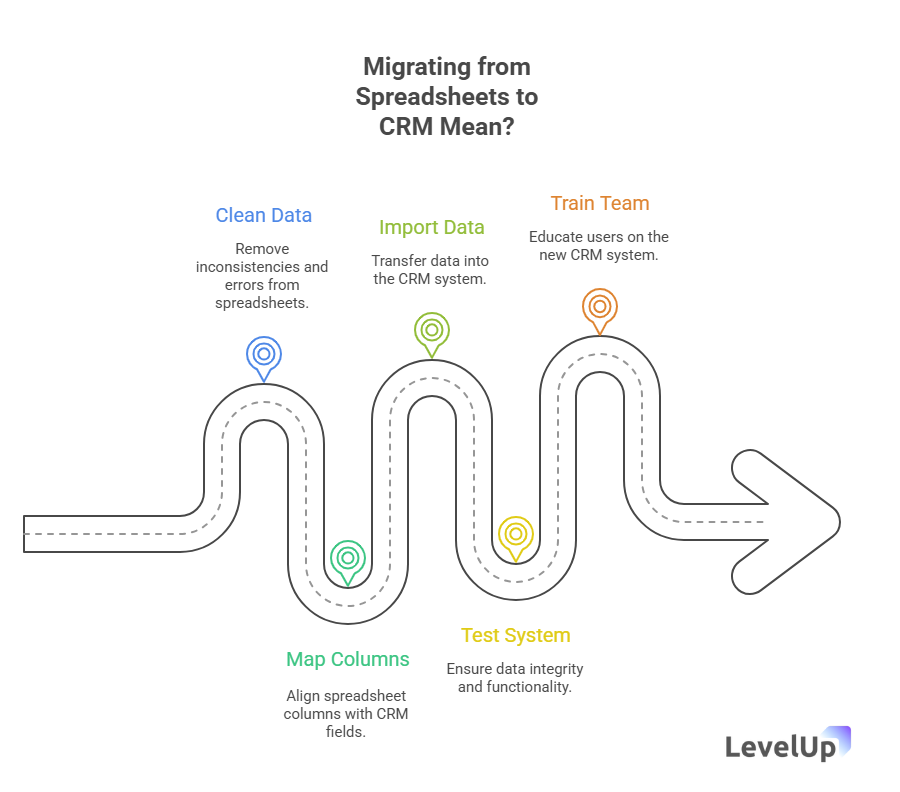
Think of it like moving from a cluttered junk drawer to a proper filing cabinet. The stuff is mostly the same, but now everyone knows where to find the scissors.
The migration process typically involves:
- Cleaning up your existing spreadsheet data
- Mapping your columns to CRM fields
- Importing the data using your CRM’s built-in tools
- Testing everything to make sure nothing broke
- Training your team on the new system
Most small teams can complete a basic migration in a few hours if they prepare properly. Complex migrations with custom workflows might take a few days, but we’re talking hours of active work, not weeks of your life.
Why This Actually Matters (Beyond Just “Looking More Professional”)
Let me be blunt: spreadsheets cost you money.
According to MarketWatch research, spreadsheet errors cost businesses an average of 5% of their annual revenue. For a company doing $500K a year, that’s $25,000 literally disappearing into data chaos.
But the financial hit isn’t even the worst part. Here’s what I’ve watched happen to teams still relying on spreadsheets:
Lost leads fall through the cracks. When Sarah from sales has version 3 of the spreadsheet and Tom has version 5, leads literally disappear. I’ve seen this happen with qualified prospects who were ready to buy—they just never got the follow-up email because it wasn’t in someone’s version of the file.
Demo scheduling becomes a nightmare. You’re manually checking calendars, sending confirmation emails, setting reminders in three different places. One person forgets to update the sheet, and suddenly two people show up to give the same demo.
Follow-ups get missed. There’s no automatic reminder that John’s demo was three days ago and he hasn’t heard back. That hot lead goes cold while you’re busy putting out other fires.
Team coordination fails. “Did you call that lead?” “I thought you were handling it.” “Wait, which lead?” Sound familiar?
The numbers back this up. Nucleus Research found that businesses using CRMs report a 29% increase in sales and 34% improvement in sales productivity. That’s not because CRMs have magic powers—it’s because they prevent the chaos that eats your day.
For SaaS founders and small teams specifically, the impact is even more pronounced. A Capterra survey found that teams of 1-10 people experience a 40% reduction in administrative tasks after migrating to a CRM. That’s time you get back to actually build your product or talk to customers.
How Does Migration Actually Work in Practice?
Alright, let’s get practical. I’m going to walk you through the five-phase process I use with every team I help migrate. This isn’t theory—this is the exact sequence that prevents disasters.
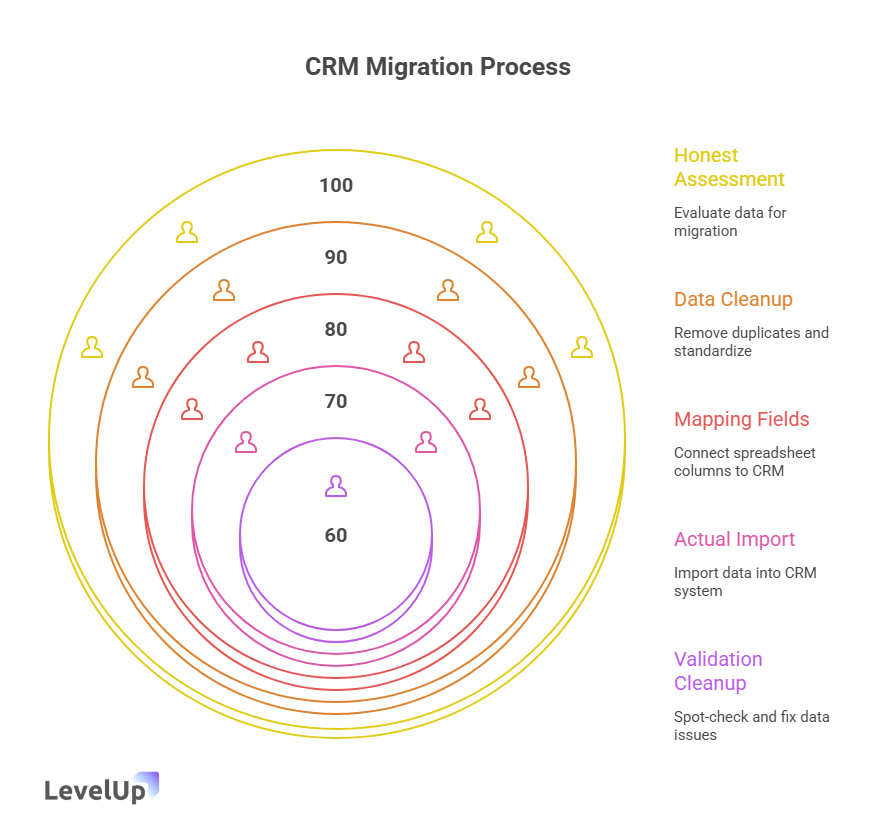
Phase 1: The Honest Assessment (Before You Touch Anything)
First, open your spreadsheet and really look at it. I mean really look.
Ask yourself:
- How many tabs do I actually need to migrate? (Not how many exist—how many contain data you’ll use going forward?)
- What’s the oldest data in here? (If you haven’t touched a lead in 18 months, you probably don’t need to migrate it)
- Which columns are actually important? (That “Random Notes” column with cryptic abbreviations? Maybe not essential)
I usually tell teams to create a simple doc that answers:
- What data do we absolutely need to keep?
- What can we archive or delete?
- What information is missing that we wish we had?
This last question is crucial. Migration is your chance to start tracking things you should have been tracking all along—like demo outcomes, follow-up dates, or which marketing source each lead came from.
Phase 2: Data Cleanup (The Part Everyone Wants to Skip But Absolutely Cannot)
This is where most migrations succeed or fail. Not during the import—during the prep.
I learned this the hard way when I tried to migrate 2,000 contacts without cleaning the data first. The CRM imported everything, but then I had:
- Three different entries for the same company (spelled slightly differently each time)
- Phone numbers in five different formats
- Email addresses mixed in with company names
- Blank rows everywhere
- Special characters that broke the import halfway through
Here’s your cleanup checklist:
Remove duplicates. Excel and Google Sheets both have built-in duplicate removal tools. Use them. Then manually scan for near-duplicates (like “Acme Corp” and “Acme Corporation”).
Standardize formatting. Pick one format for phone numbers and stick to it. Same with dates, company names, and anything else that appears multiple times.
Delete blank rows and columns. They mess with the import and make your CRM think you have way more records than you actually do.
Give every column a clear header. Not “Col1” or “Misc”—actual descriptive names like “Contact Name,” “Company,” “Email,” “Phone,” “Last Contact Date.”
Remove special characters. Commas, quotation marks, and line breaks inside cells can break imports. Find and replace them now.
Separate different data types. If you’re tracking both leads and existing customers in the same sheet, split them into separate tabs. Most CRMs import different record types separately.
I usually budget 2-3 hours for cleanup on a typical small team spreadsheet. It’s tedious, but it’s also the difference between a smooth migration and a week of fixing errors.
Phase 3: Mapping Your Fields (Translation Time)
Now comes the translation layer. Your spreadsheet has columns; your CRM has fields. You need to tell the system which column becomes which field.
Most CRMs make this pretty intuitive during the import process—you’ll see your spreadsheet columns on one side and CRM fields on the other, and you draw connections between them.
Here’s what you need to know:
Identify required fields. Every CRM has fields that must be filled for a record to import. Usually that’s something like “Contact Name” or “Company Name” plus at least one way to reach them (email or phone). If your spreadsheet is missing required fields, add them before importing.
Create custom fields if needed. Got a column for “Demo Date” but your CRM doesn’t have that field built-in? Most systems let you create custom fields. Do that before importing so you have somewhere to map that data.
Don’t force data into the wrong fields. If you’ve got a column called “Notes” that’s full of random info, don’t try to cram it into a structured field like “Industry.” Either create a custom notes field or consider whether that data is actually useful.
Consider what you don’t need to import. Not every column in your spreadsheet needs to come over. If you’ve got a “Random Thoughts” column you never look at, skip it.
I usually draw out the mapping on paper first, just to make sure I haven’t missed anything. It looks like:
Spreadsheet → CRM”Full Name” → “Contact Name””Email Address” → “Email””Phone” → “Phone Number””Business Name” → “Company””Last Talked” → “Last Contact Date” (custom field)”Demo Scheduled?” → “Demo Status” (custom field)
Phase 4: The Actual Import (Finally)
Okay, your data is clean, your fields are mapped—now you’re ready to import.
Step 1: Export your spreadsheet as CSV. Most CRMs prefer CSV files over Excel or Google Sheets files. In Excel, that’s File > Save As > CSV. In Google Sheets, File > Download > CSV.
Step 2: Back up everything. Seriously. Export your current spreadsheet, save it with today’s date, and store it somewhere safe. If the import goes sideways, you need a way to start over.
Step 3: Find your CRM’s import tool. It’s usually under Settings, Admin, or Data Management. Look for something like “Import Contacts” or “Import Leads.”
Step 4: Upload your CSV and map your fields. The CRM will show you a preview. Check it carefully. Make sure your names ended up in the name field, not the phone field.
Step 5: Start with a test import. Most CRMs let you import just the first 10 or 20 rows as a test. Do that. Check those records in your CRM. Make sure everything looks right.
Step 6: If the test looks good, import everything. If not, figure out what went wrong, fix your CSV, and try again.
Step 7: Review the import log. Most systems give you a report of what imported successfully and what failed. Pay attention to failures—they usually mean data formatting issues you need to fix.
I’ve done imports that took 5 minutes and others that took three tries over two days. The difference was always in the cleanup and mapping work beforehand.
Phase 5: Validation and Cleanup (You’re Not Done Yet)
The import finished without errors. Great! But you’re not done.
Now you need to spot-check your data:
Pull up 10-20 random records. Do they look right? Is all the information where it should be?
Check for duplicates the CRM didn’t catch. Sometimes the import creates duplicates even if you cleaned them out of your spreadsheet.
Test a few workflows. Can you schedule a demo? Can you log a follow-up? Can you assign a lead to a team member?
Look for missing data. Did any fields come through blank that shouldn’t be?
Fix issues now. If you spot problems, it’s easier to fix them immediately than to let bad data sit in your system.
I usually spend 30-60 minutes on validation. It’s worth it to catch issues before your team starts using the system.
What Are the Main Benefits (and Honest Drawbacks) of Migrating?
Let me give you the real talk—not the sales pitch.
The Benefits (Why You’re Probably Doing This)
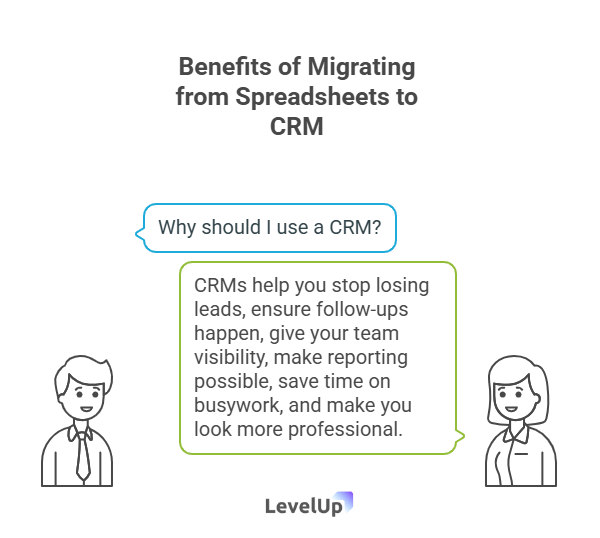
You stop losing leads. Everyone sees the same data. No more “I thought you were handling that” or “It wasn’t in my version of the sheet.”
Follow-ups actually happen. CRMs remind you when someone needs a follow-up. Spreadsheets don’t. According to Outreach.io research, automated follow-ups can increase demo show rates by up to 30%.
Your team gets visibility. Everyone can see who’s working on what, what stage each lead is in, and what needs to happen next. This is huge for small teams where people wear multiple hats.
Reporting becomes possible. Want to know your demo-to-close rate? Or which marketing source sends the best leads? Good luck calculating that from a spreadsheet. CRMs make it a two-click report.
You save time on busywork. No more manually sending confirmation emails, checking if someone responded, or updating three different cells when a deal closes. Automation handles the repetitive stuff.
You look more professional. This sounds superficial, but it matters. When a prospect gets an automated confirmation email with calendar integration, it signals that you’re organized and serious.
The Drawbacks (Things Nobody Mentions)
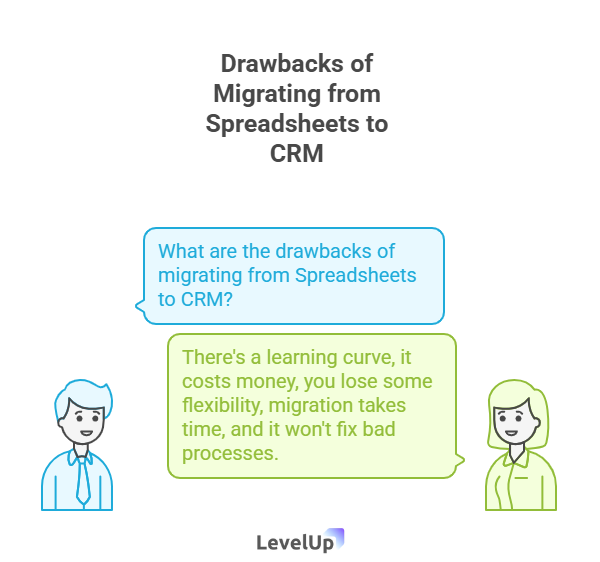
There’s a learning curve. Your team needs to learn a new system. Some people will resist. Some will complain that the spreadsheet was “easier” (it wasn’t, but change is uncomfortable).
It costs money. Most decent CRMs charge monthly fees. For a small team, that might be $50-200/month depending on features and users. Spreadsheets are free (in software cost, not in hidden productivity costs).
You lose some flexibility. Spreadsheets let you do whatever you want. CRMs have structure. That structure is helpful, but sometimes you’ll miss being able to just add a random column for a one-off project.
Migration takes time upfront. You’re investing several hours (or days for complex setups) into something that won’t show ROI until weeks later.
It won’t fix bad processes. If your team doesn’t follow up with leads now, a CRM won’t magically make them do it. The system enables good processes, but you still need to build those processes.
I’ve seen teams migrate and then barely use the CRM because they never built new habits. The technology is just a tool—it still requires human discipline.
When Should You Actually Migrate? (Timing Matters)
Not every team needs to migrate right now. Here’s how I think about timing:
You should migrate soon if:
- You’ve lost a qualified lead due to spreadsheet chaos
- Your team size is growing (3+ people trying to share one spreadsheet is when things break)
- You’re spending more than 5 hours a week on manual data entry and updates
- You can’t answer basic questions like “How many demos did we do last month?” without spending an hour counting rows
- You’re about to hire someone who’ll need access to lead data
- You’ve got demos or trials as a key part of your sales process
You can probably wait if:
- You’re a solo founder with fewer than 20 active leads
- Your spreadsheet is clean, organized, and you never lose track of anything
- You’re pre-product-market-fit and everything is still experimental
- You don’t have budget for any tools right now (focus on revenue first)
You definitely need to migrate if:
- Multiple team members are maintaining separate versions of the “truth”
- You’ve had prospects complain about slow or missed follow-ups
- You’re about to scale your sales or marketing efforts
- You’re preparing for an investor pitch and need clean pipeline data
The sweet spot for migration is usually when you hit 2-3 team members and 50+ leads in your pipeline. That’s when spreadsheets stop being helpful and start being dangerous.
What Mistakes Should You Avoid? (Learn from My Pain)
I’ve seen (and made) every migration mistake in the book. Here are the big ones:
Mistake #1: Migrating Dirty Data
I mentioned this earlier, but it’s worth repeating: garbage in, garbage out. If you import messy data, you’ll have a messy CRM. And cleaning data inside a CRM is way harder than cleaning it in a spreadsheet first.
One team I worked with imported 5,000 contacts without cleanup. They ended up with 1,200 duplicate records and spent three weeks manually merging them. Don’t be that team.
Mistake #2: Over-Customizing Too Soon
CRMs offer tons of customization—custom fields, custom workflows, custom everything. New users get excited and build elaborate systems before they understand what they actually need.
Start simple. Import your core data. Use the CRM for a few weeks. Then add custom fields and workflows based on what you’re actually missing. I’ve seen teams spend 40 hours building a complex lead scoring system they ended up never using.
Mistake #3: Not Training Your Team
You can’t just import data, send a Slack message saying “We have a CRM now!” and expect adoption. People need training, documentation, and answers to their questions.
Block out at least one hour for a team training session. Record it for future hires. Create a simple one-page quick-reference guide. Check in after the first week to see what questions people have.
Mistake #4: Forgetting to Set Permissions
Not everyone needs admin access. Not everyone should be able to delete records or change core settings. Set appropriate permissions from day one, or you’ll end up with someone accidentally deleting 200 contacts because they thought they were deleting a test record.
Mistake #5: Abandoning Your Spreadsheet Too Soon
Keep your old spreadsheet around for at least a month after migration. Don’t delete it. Don’t archive it to some obscure folder. Keep it accessible.
Why? Because you’ll inevitably discover something didn’t import correctly, or you’ll need to reference old notes that didn’t fit into your new structure. Having the original data available is a safety net.
Mistake #6: Choosing the Wrong CRM
This is actually a pre-migration mistake, but it matters. Not all CRMs are built for small teams. Some are enterprise monsters with 47 features you’ll never use and a price tag to match.
For small teams, especially those focused on demos and product-led growth, you want something lightweight that solves your actual problems—not a Swiss Army knife that requires a manual to use.
Mistake #7: Not Defining Ownership
Who owns the CRM? Who’s responsible for keeping it clean, answering questions, and managing the system? If nobody owns it, it’ll become as messy as your old spreadsheet within six months.
Assign someone (even if it’s just 2 hours a week of their time) to be the “CRM person.” They don’t need to be technical—they just need to care about data quality and be willing to answer questions.
Step-by-Step Migration Checklist (The TL;DR Version)
Alright, let’s put this all together into a simple checklist you can follow:
Before You Start
□ Choose your CRM (consider your budget, team size, and specific needs)
□ Back up your current spreadsheet
□ Identify which data you actually need to migrate
□ Delete or archive old, irrelevant data
Data Preparation
□ Remove duplicate entries
□ Standardize phone number, date, and name formats
□ Delete blank rows and columns
□ Add clear, descriptive column headers
□ Remove special characters that might break the import
□ Separate different record types into different tabs
□ Verify required fields are present
Field Mapping
□ List your spreadsheet columns
□ List your CRM fields (including any custom fields you need to create)
□ Map each column to the appropriate field
□ Create custom fields in your CRM for any data that doesn’t fit standard fields
□ Document your mapping for future reference
Import Process
□ Export your spreadsheet as CSV
□ Create a backup of the CSV file
□ Upload CSV to your CRM’s import tool
□ Map fields during the import process
□ Run a test import with 10-20 records
□ Check test records for accuracy
□ Fix any issues and re-test if needed
□ Run the full import
□ Review the import log for errors
Post-Migration
□ Spot-check 20+ random records
□ Look for duplicate records the system didn’t catch
□ Test key workflows (creating records, scheduling demos, logging activities)
□ Verify all data fields populated correctly
□ Fix any issues immediately
□ Set up user permissions
□ Create basic documentation for your team
□ Schedule a team training session
□ Keep your old spreadsheet accessible for 30 days
□ Assign someone to own CRM maintenance
How to Get Your Team On Board (The Human Side)
Here’s something nobody talks about: the technology is usually the easy part. Getting your team to actually use the new system is the hard part.
I’ve seen perfect migrations fail because the team revolted and went back to spreadsheets within two weeks. Here’s how to avoid that:
Start with the “Why”
Don’t just announce “We’re switching to a CRM.” Explain why. Share the pain points everyone’s experiencing. “Remember when we lost that big lead last month because the follow-up fell through the cracks? That’s what we’re solving.”
People resist change when they don’t understand the benefit. Make the benefit crystal clear.
Involve Them Early
Ask for input before you choose a CRM. “What features would make your job easier?” “What frustrates you about our current system?”
When people feel heard, they’re more likely to support the change.
Make Adoption Easy
Create a simple one-page quick reference guide. Not a 47-page manual—a single page with:
- How to add a new lead
- How to schedule a demo
- How to log a follow-up
- Who to ask if you need help
Put it somewhere everyone can access it. Update it based on questions people actually ask.
Celebrate Early Wins
When the CRM helps someone close a deal or remember a follow-up, call it out. “Sarah just closed a $10K deal because the CRM reminded her to follow up. Nice work!”
Positive reinforcement works.
Be Patient with the Learning Curve
Some people will pick it up immediately. Others will struggle. That’s normal. Make it safe to ask “dumb” questions. The person who’s too embarrassed to ask how something works will just stop using the system.
Lead by Example
If you’re the founder or team lead, you need to use the CRM religiously. If people see you still updating the old spreadsheet “just to be safe,” they’ll do the same.
Model the behavior you want to see.
What Happens After Migration? (Setting Yourself Up for Long-Term Success)
The migration is done. Your data is in the system. Your team is trained. Now what?
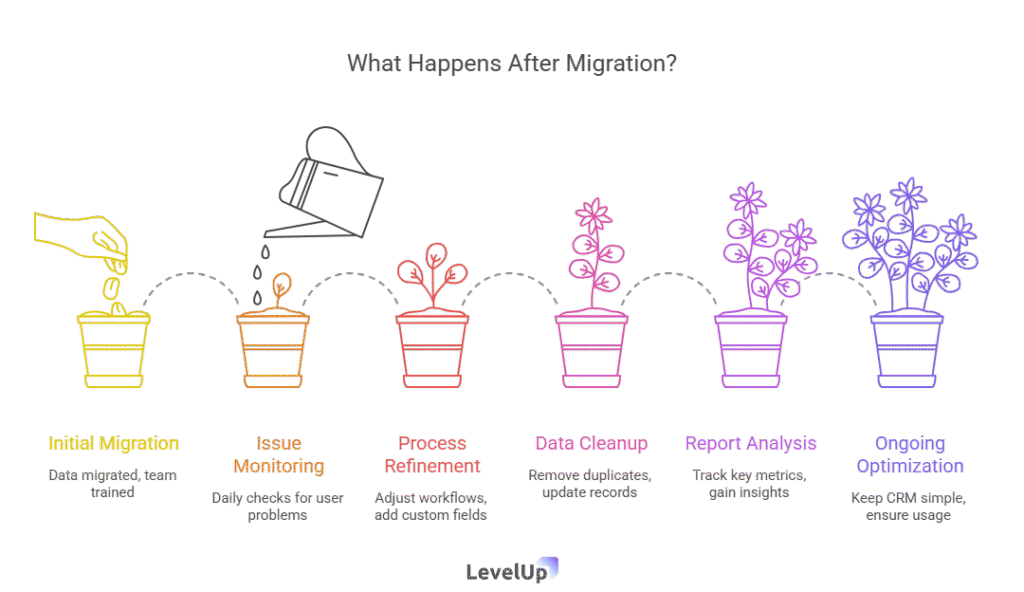
Week 1: Watch for Issues
Check in daily. Are people actually using it? Are they running into problems? Fix issues immediately before they become excuses to abandon the system.
Week 2-4: Refine Your Processes
Now that you’ve used the CRM for a bit, you’ll see what’s working and what’s not. Maybe you need to add a custom field you didn’t think of. Maybe a workflow isn’t quite right. Make adjustments.
This is also when you might want to set up basic automation—like automatic follow-up reminders or demo confirmation emails.
Month 2: Review Your Data Quality
Schedule a “data cleanup day” about 6-8 weeks after migration. Check for duplicates, incomplete records, or data that needs updating. Make this a regular habit—maybe quarterly.
Month 3: Start Using Reports
Once you have a few months of data, start looking at reports. What’s your demo-to-close rate? Which lead sources convert best? How long does your average sales cycle take?
This is where the CRM starts paying real dividends—giving you insights you could never get from a spreadsheet.
Ongoing: Keep It Simple
Resist the urge to over-complicate things. Every time you consider adding a new field or workflow, ask: “Will we actually use this, or does it just sound cool?”
The best CRM is the one your team actually uses, not the one with the most features.
When a Lightweight Tool Beats a Full CRM
Here’s a truth that CRM salespeople won’t tell you: sometimes you don’t need a full-blown CRM. Sometimes you just need better demo management.
If your primary pain point is tracking demo requests, scheduling demos, and following up after demos—you might be better served by a specialized tool than a general-purpose CRM.
I’ve seen teams implement Salesforce or HubSpot, spend weeks on setup, and end up only using 10% of the features. They needed a demo management system, not an enterprise sales platform.
Tools like LevelUp Demo are built specifically for this use case—capturing demo requests, scheduling, tracking outcomes, and managing follow-ups without the complexity of a full CRM. You can always add a full CRM later as you scale.
Think about what problem you’re actually trying to solve:
- If you need to manage complex, multi-touch sales cycles → Full CRM
- If you need to track demos and trials efficiently → Specialized demo tool
- If you need both → Consider using both (they can work together)
The right tool is the one that solves your specific problem without adding unnecessary complexity.
Frequently Asked Questions
How long does a typical migration take for a small team?
For a team with 1-5 people and 100-500 leads, expect 4-8 hours of total work spread over a few days. That includes cleanup, mapping, import, and testing. Complex setups might take longer.
What if I don’t have clean data to start with?
Start cleaning anyway. Even getting your data 80% clean before import will save you massive headaches. Focus on removing obvious duplicates, standardizing critical fields, and ensuring required fields are filled.
Can I migrate in stages instead of all at once?
Yes! Many teams start by migrating just their active leads, then add historical data later. Just make sure you’re not creating duplicates by importing the same lead twice.
What file format should I use for import?
CSV is universally supported and least likely to cause formatting issues. Export from Excel or Google Sheets as CSV before uploading to your CRM.
How do I handle data that doesn’t fit CRM fields?
Create custom fields for data that’s important and unique to your business. For miscellaneous notes that don’t fit anywhere, most CRMs have a general “notes” or “description” field you can use.
Should I migrate inactive or old leads?
Generally no, unless you have a specific reason to keep them. If you haven’t touched a lead in 12+ months and they never converted, they’re probably not worth migrating. Focus on active and recent leads.
What if the import fails halfway through?
This is why you backed up your data, right? Check the error log to see what went wrong (usually formatting issues), fix your CSV file, and try again. Most CRMs let you delete imported records and start over.
How do I prevent duplicate records?
Clean duplicates from your spreadsheet before importing. During import, many CRMs have duplicate detection settings—use them. After import, run a duplicate check and merge any that slipped through.
Can I keep using my spreadsheet alongside the CRM during transition?
For a week or two, yes—it can help with the transition. But set a hard cutoff date when everyone stops using the spreadsheet. Running parallel systems long-term defeats the purpose of migrating.
What’s the biggest mistake people make during migration?
Skipping data cleanup. Importing messy data creates a messy CRM, and cleaning data inside a CRM is way harder than cleaning it in a spreadsheet first. Take the time to clean properly before you import.
Final Thoughts: Make the Switch Today
Look, I get it. Migrating from spreadsheets to a CRM feels like one more thing on your already-too-long to-do list. It’s easy to keep putting it off.
But here’s what I’ve learned after helping dozens of teams through this transition: the pain of migration is temporary. The pain of lost leads, missed follow-ups, and data chaos is permanent.
Every day you wait is another day you’re:
- Risking lost revenue from leads that fall through the cracks
- Wasting hours on manual data entry and coordination
- Operating without visibility into what’s actually working
- Making it harder to onboard new team members
The teams that migrate and stick with it consistently report the same thing: “I wish we’d done this sooner.”
You don’t need a perfect system. You don’t need to have everything figured out. You just need to start.
Take an afternoon this week. Clean your spreadsheet. Pick a CRM that fits your needs and budget. Run a test import. See how it feels.
And if you’re specifically struggling with demo management—tracking requests, scheduling efficiently, following up consistently—check out LevelUp Demo. It’s built specifically for small teams who need demo workflows without CRM complexity.
The spreadsheet served you well when you were starting out. But if you’re reading this, you’ve probably outgrown it.
It’s time to level up.
Ready to streamline your demo workflow? Try LevelUp Demo free for 14 days—no credit card required. Or book a quick demo to see it in action first.